Choose your platform

Download Flow Keyboard

1
Downloads
FlowKeyboard.dmg

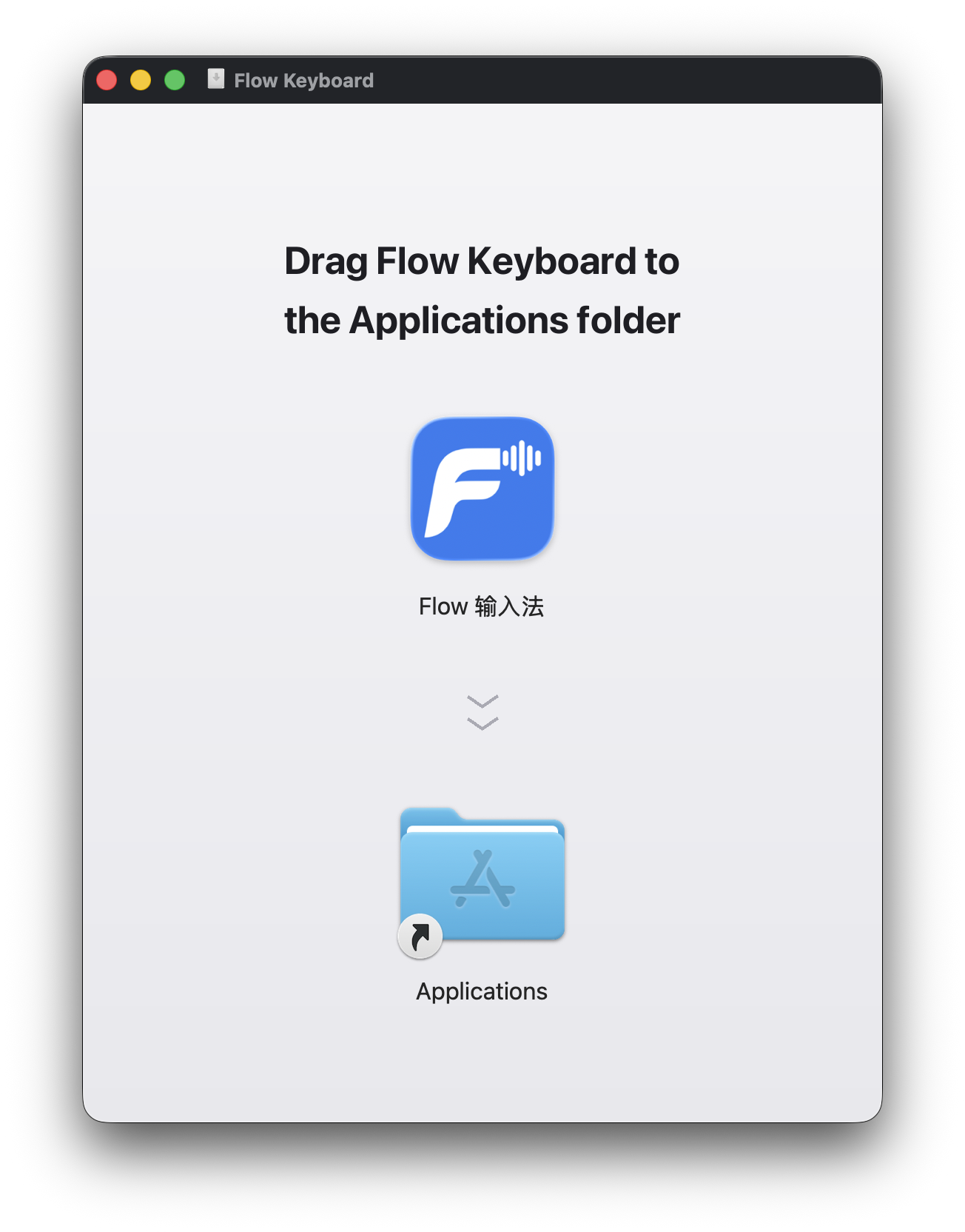
Open FlowKeyboard.dmg from your Downloads folder

2
FlowKeyboard
Flow Keyboard
A Applications

Drag Flow Keyboard into your Applications folder

3
Applications
FaceTime.app
Flow Keyboard.app
Font Book.app

Open Flow Keyboard from your Applications folder

macOS installer: Download for macOS

Installation & setup

macOS: macOS 14 Sonoma or later. Supports both Apple Silicon and Intel Macs.

This means your macOS version is too old. Flow Keyboard requires macOS 14 Sonoma or later.
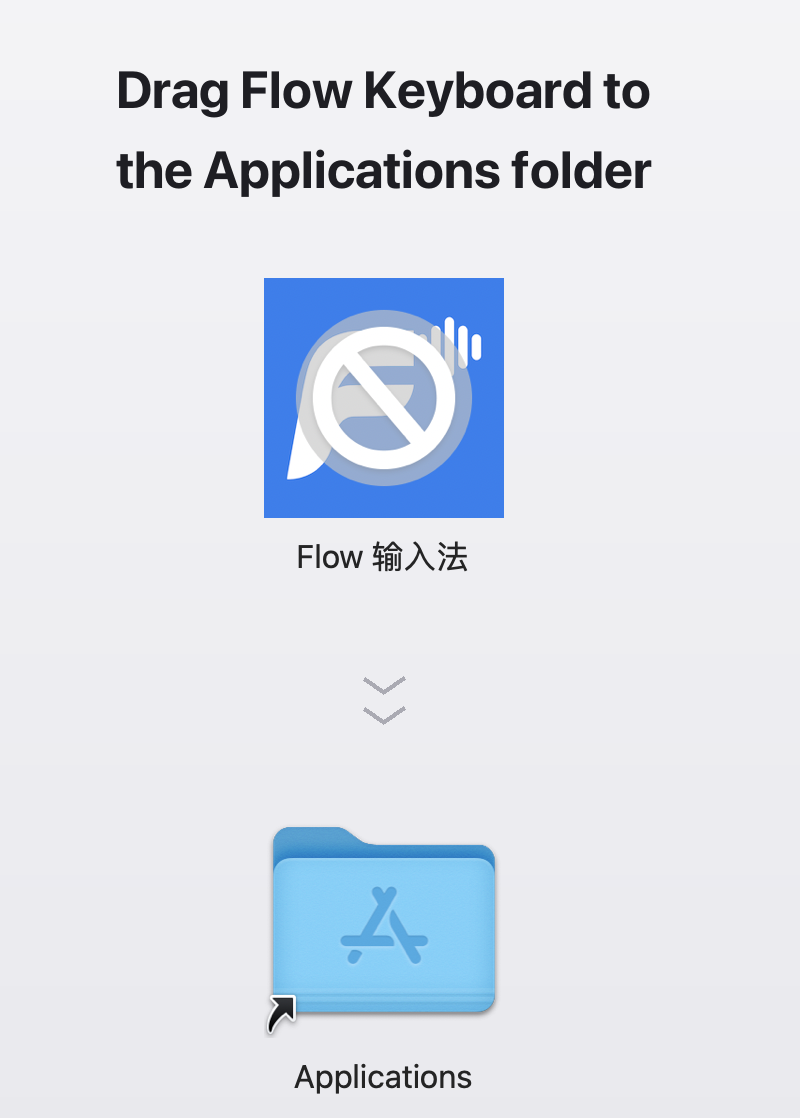
Unsupported Mac showing prohibited icon Unsupported (macOS too old)
Normal installation screen Normal installation

Go to System Settings → General → Software Update to check for updates. Note that some older Macs (2017 and earlier) cannot upgrade to macOS 14 and are not supported.

Flow Keyboard is officially notarized by Apple, so this is not an actual problem with the app. It usually means the macOS security service is in a temporary bad state.

Solution: Restart your Mac, then try opening the app again.

Any Mac that can run macOS 14 Sonoma, including:

MacBook Air (2018+), MacBook Pro (2018+), Mac mini (2018+), iMac (2019+), iMac Pro (2017), Mac Pro (2019+), Mac Studio (2022+).

Open Flow settings and check for updates, then follow the prompts to install the new version.

Use cases · Insights · Help center

Installation & setup

Download and open the installer

Follow the installer to complete setup

Launch Flow Keyboard, sign in, and set your microphone and shortcut

Flow Keyboard for Windows supports Windows 10 or later on x64 PCs.

Flow Keyboard needs microphone access for voice input. You can choose or change the input device in Settings.

Open Flow settings and check for updates, then follow the prompts to install the new version.

Use cases · Insights · Help center

Download on the App Store
Scan with your phone · App Store

Installation & setup

iOS 17 or later.

Open Flow and follow the setup guide. In Settings → General → Keyboard → Keyboards, add Flow Keyboard. Use the globe key to switch to Flow.

Enable Allow Full Access for Flow Keyboard in keyboard settings so the keyboard can use Flow’s online voice-input service.

Open Flow and start voice input, then allow microphone access when prompted. If you previously denied access, enable it for Flow in Settings → Privacy & Security → Microphone.

Open Flow’s App Store page and tap Update when a new version is available.

Use cases · Insights · Help center

Scan with your phone · Google Play

Want to try new features early? Apply for the Android beta by email service@snowline.ai

Installation & setup

Installing the website APK

Download the APK from this page and open it. If Android asks, allow this browser to install apps, then follow the installation prompts.

Android 8.0 or later.

Open Flow and follow the guide to enable Flow Keyboard in system settings, then select it as your current keyboard. Setting names vary by device.

Microphone access is needed for voice input. Allow it when prompted. If access was denied, open Flow’s app permissions in system settings and enable Microphone.

Update through Google Play, or download a newer APK from this page. The website and Google Play versions support upgrading in either direction; you do not need to uninstall Flow first.

Use cases · Insights · Help center